
Before you start
You need a compatible watch running Wear OS, an internet connection for new readings, and AirWear installed on the watch. Google Pixel Watch and Samsung Galaxy Watch models running Wear OS are examples of this watch family. The Google Play listing on your device confirms whether AirWear is available for your particular model.
Older Galaxy watches that run Tizen cannot install Wear OS apps. Menu labels also vary between Pixel Watch, Galaxy Watch and individual watch faces, so look for the equivalent tile or complication controls on yours.
A complication is a small data slot within a watch face. A tile is a separate screen in the carousel beside the watch face. AirWear provides both; the app itself shows more detail, including the reading’s source and freshness.
01 / START WITH THE APP
Install AirWear and get your first AQI reading
- Open Google Play on your watch, search for AirWear by CrewApp and install it. You can also open the AirWear Play listing and choose a compatible watch linked to your Google account.
- Open AirWear on the watch and allow location access when prompted to find readings near you.
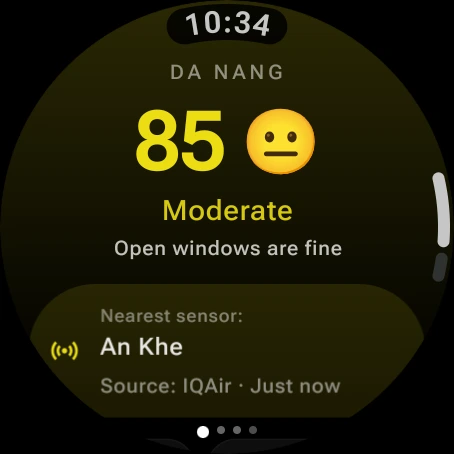
- Wait for a reading, then check the location, AQI category, sensor and update time. This gives you a useful reference before adding the tile or complication.
02 / A GLANCE AT YOUR WATCH FACE
Add an air-quality complication
- Touch and hold your current watch face. Open its Edit, Customize or settings control.
- Find the complication or data section and select a slot that supports third-party data.
- Choose AirWear from the available complication providers, then save or return to the watch face.
The watch face determines the size, style and available slots. If AirWear is missing from one slot, try another slot or a different face with complication support.

For the general watch-face controls, see Google’s Wear OS customization instructions.
03 / MORE ROOM, ONE SWIPE AWAY
Add the AirWear AQI tile
- From your watch face, swipe left to open the tile carousel.
- Touch and hold a tile to edit the carousel, then find Add tile or Add widget.
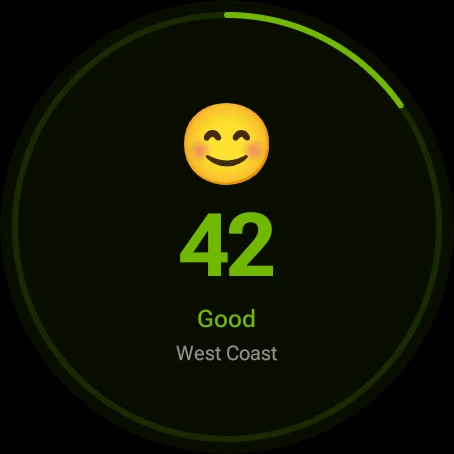
- Select AirWear’s current-location AQI tile. Move it near the start of your carousel if you want quick access.
Some watches also let you manage tiles in their companion phone app. The current-location tile is free; the multi-location Pro tile is for your saved places.
See Google’s tile instructions for adding and rearranging tiles.
What is free, and what needs Pro?
Free
Current-location air quality, the AQI tile and a watch-face complication. You can complete this guide without a Pro subscription.
AirWear Pro
Up to four saved locations alongside your current location, a multi-location tile and more frequent updates. Monthly and yearly prices are shown in the app.
If something is missing
AirWear is not in the complication picker
Check that the app is installed on the watch itself and that you have opened it. Try another complication slot: a face may restrict which data it can show. If no suitable slot is available, use the AirWear tile or choose a different watch face.
The tile or complication has no reading
Open AirWear and check whether the app can load current-location AQI. Confirm that location permission is enabled and the watch has an internet connection. If the app cannot get a reading, nearby provider coverage may also be limited. Once a reading is available, return to the tile or watch face.
The reading looks old or differs from another app
Check the source, nearest sensor and update time in AirWear. Providers and stations can report at different times, and conditions can vary across a city. Watch background updates are periodic, so a tile or complication may not change immediately.
I cannot find AirWear in Google Play
Open the listing on the watch or select that watch in Google Play. Compatibility is determined for the device; being paired with an Android phone alone does not mean a watch runs Wear OS.
Still stuck? Email feedback@crewapp.xyz with your watch model, watch-face name and what you see.